
Before you start
- A connected broker, because alerts use live prices from your broker account.
- A reason for each alert. An alert works best at a level from your trading plan, such as a support level, a stop you want to watch or a breakout point.
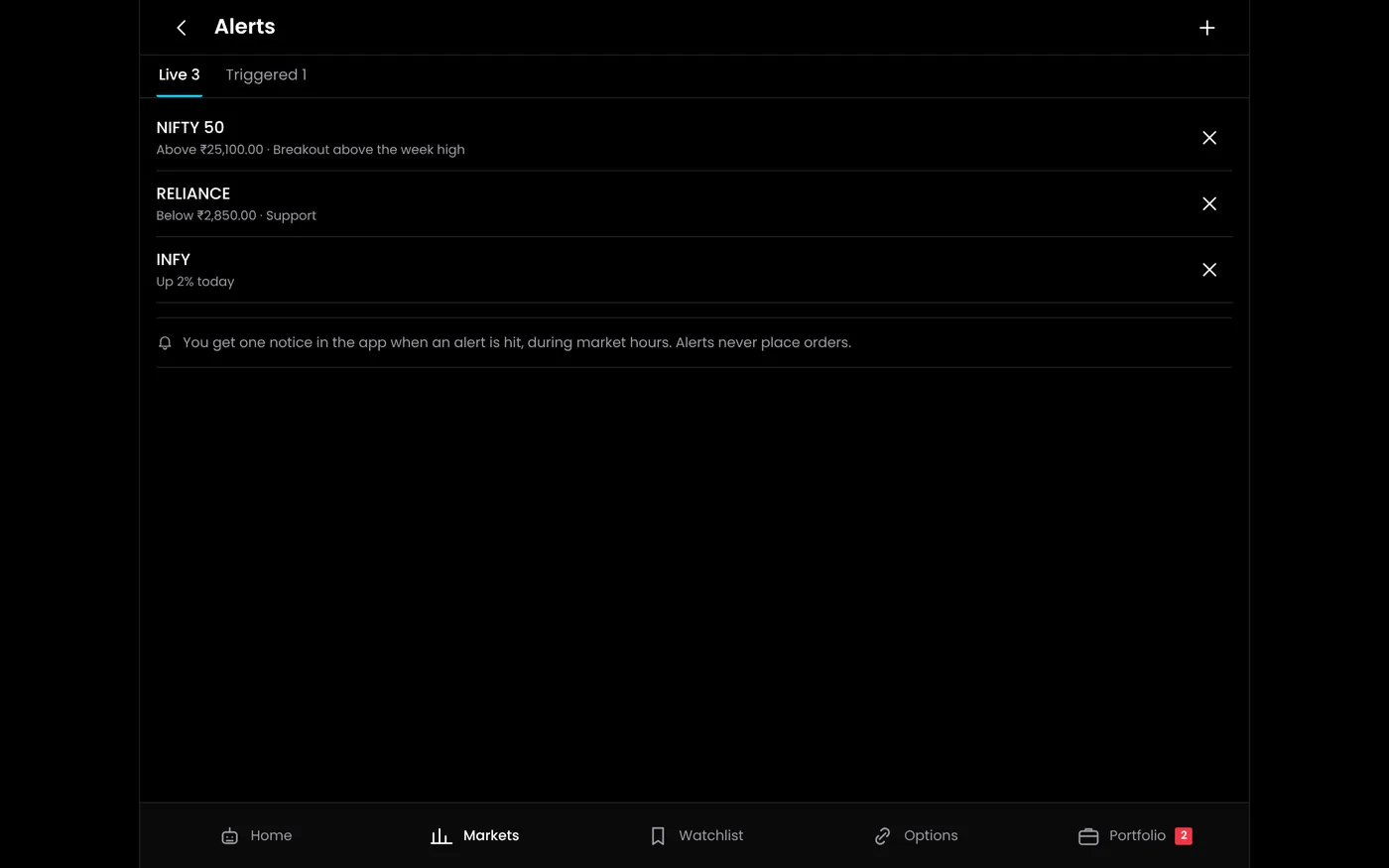
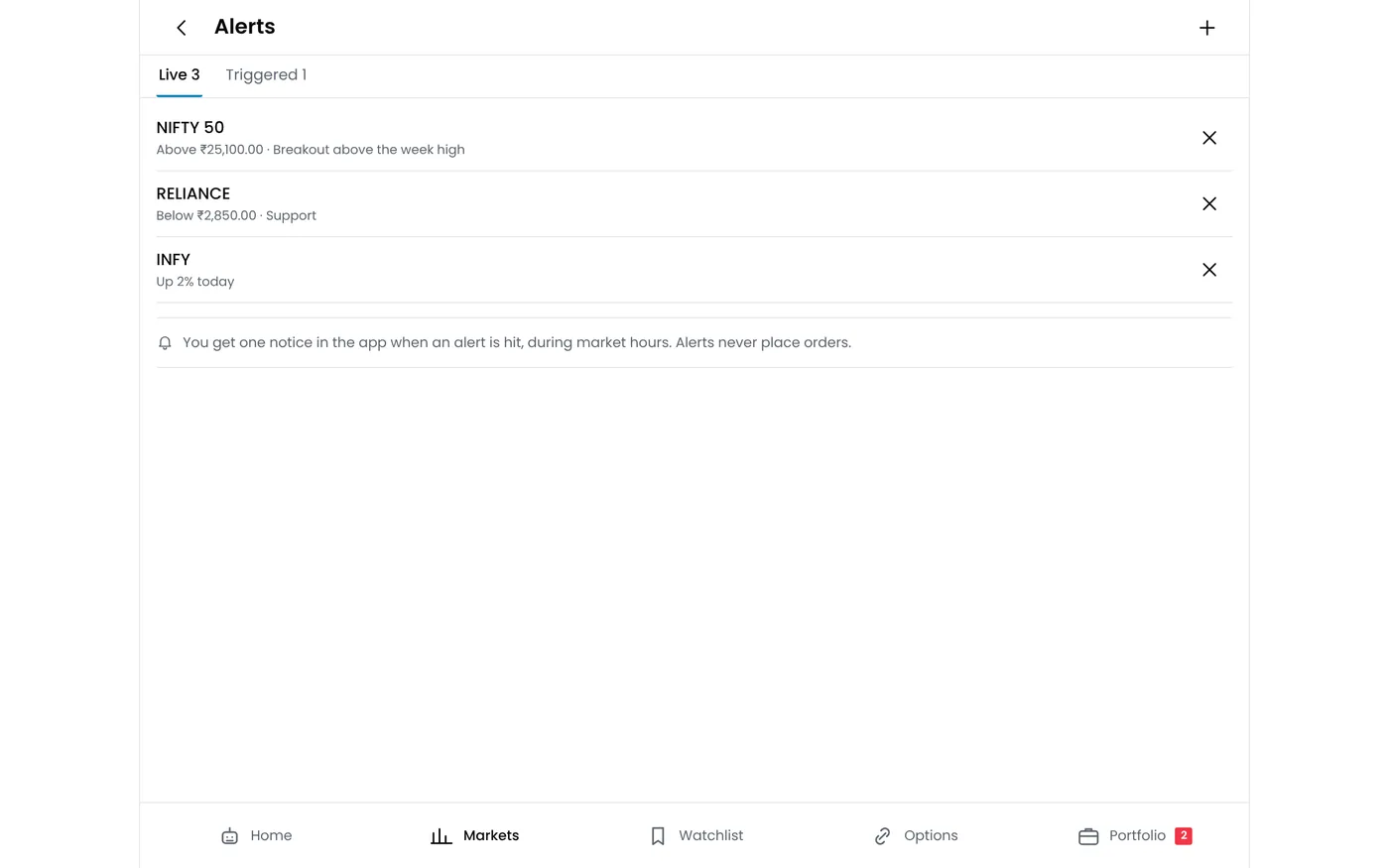
Step 1: Open a new alert
- Open Terminal and choose the instrument on the chart.
- Select New alert.
Step 2: Choose what the alert watches
| Alert on | Example | Use it for |
|---|---|---|
| Price | Nifty crosses above 25,100 | Levels from your plan |
| Indicator | RSI (14) below 30 on 15-minute candles | Indicator conditions you want to act on by hand |
| Percentage move | Bank Nifty falls 1% from the previous close | Sharp moves during the day |
You can set alerts on indices, stocks, futures and option prices.
Step 3: Set the condition and value
For a price alert, choose the condition and enter the level. In the example, the alert triggers when Nifty crosses above 25,100.
- Crosses above triggers when the price moves from below the level to above it.
- Crosses below triggers on the way down.
The pivot point calculator and CPR calculator give common levels to alert on.
Step 4: Choose how often it triggers
- Once: the alert triggers the first time and then stops. Use it for a single level.
- Every time: the alert triggers whenever the condition is met again. Use it for levels you watch every day.
Step 5: Choose notifications and create
Keep Notify me in the app on to get the alert on your phone, then select Create alert. The alert appears in the list of active alerts, with its status.
Step 6: Manage active alerts
- Edit an alert when your plan changes.
- Delete alerts that are no longer relevant. Too many alerts are easy to ignore.
- Check triggered alerts at the end of the day and note what you did with each.
Alerts or automation?
An alert leaves the decision to you. If you would place the same order every time an alert triggers, consider signal trading, which turns indicator conditions and TradingView alerts into orders with stops and exits.
| Alert | Signal trading | |
|---|---|---|
| Places an order | No | Yes |
| Needs you at the screen | Yes, to act | No |
| Best for | Levels you judge case by case | Rules you follow the same way every time |
Common problems
| Problem | What to do |
|---|---|
| No notification on the phone | Allow notifications for the QuantPower app in your phone's settings |
| The alert triggered later than expected | Indicator alerts on candles trigger when the candle closes |
| The alert did not trigger | Check that it was active, the level and the direction of the condition |
Next steps
- Set up multiple charts
- Use the option chain
- Read more about market alerts
Frequently asked questions
Do alerts place trades?
No. Use signal trading or an algo bot to place orders automatically.
Can I set alerts on options?
Yes, on option prices as well as on the underlying.
Can I get alerts on my phone?
Yes, through the QuantPower app.