
Before you start
- A Professional or Ultimate plan, which include the MTM stop loss algo. See pricing.
- Your daily loss limit decided in advance, as an amount you can lose in a day without changing your plans.
What an MTM stop loss does
MTM, or mark-to-market, is the profit or loss on your open and closed positions for the day at current prices. The MTM stop loss watches the combined total and squares off the positions it covers when the total reaches your limit. It protects you when several strategies or trades lose at the same time, which per-trade stop losses cannot do on their own. Our MTM meaning page explains the term.
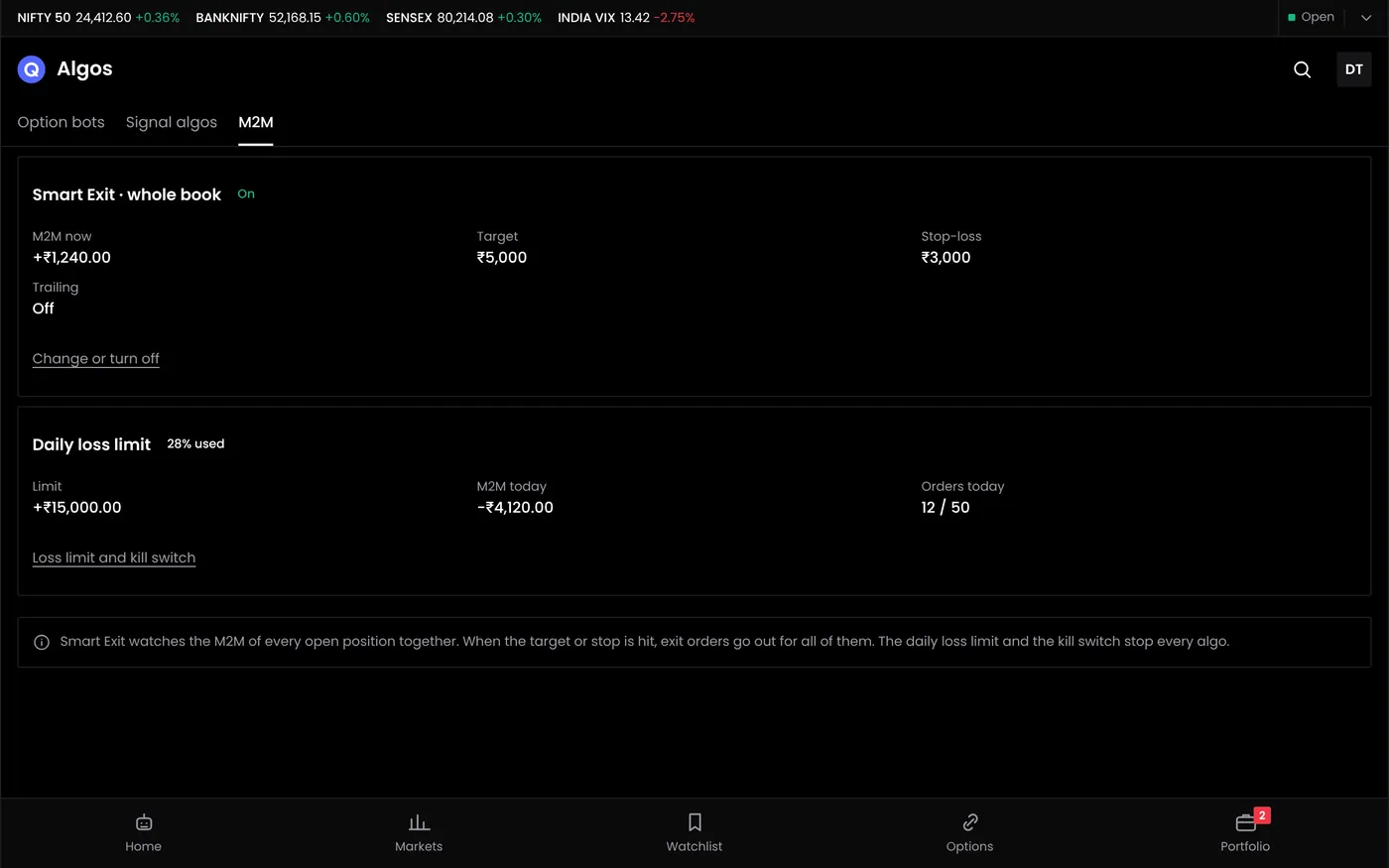
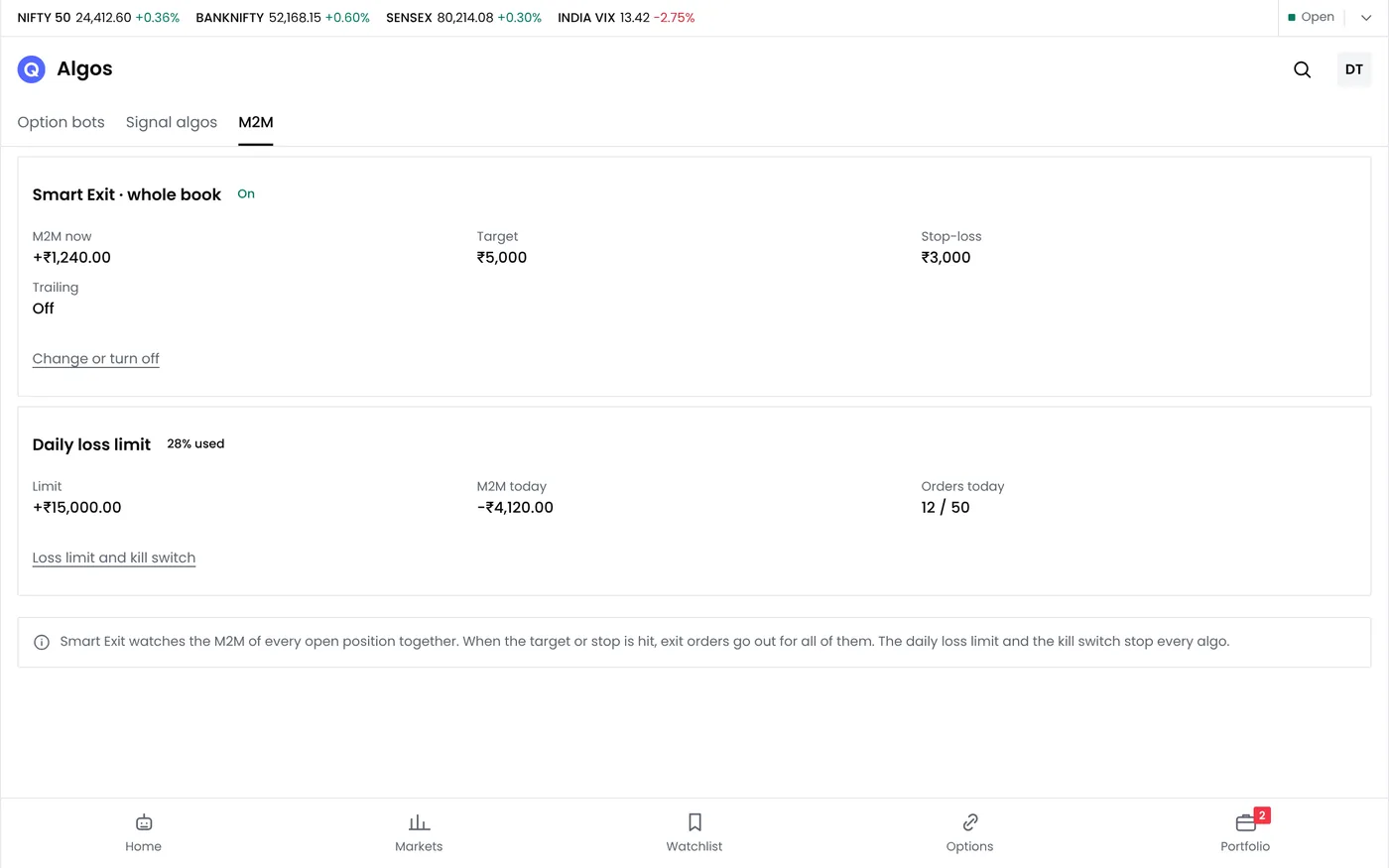
Step 1: Open the MTM stop loss
Open Algo bots and select MTM stop loss.
Step 2: Set the loss limit
Many traders use 1% to 3% of their trading capital. With ₹4,00,000 in the account, 2% gives a daily loss limit of ₹8,000.
| Capital | 1% | 2% | 3% |
|---|---|---|---|
| ₹2,00,000 | ₹2,000 | ₹4,000 | ₹6,000 |
| ₹4,00,000 | ₹4,000 | ₹8,000 | ₹12,000 |
| ₹10,00,000 | ₹10,000 | ₹20,000 | ₹30,000 |
Set the limit below the combined stop losses of all your bots, so the account limit acts as the last line of defence.
Step 3: Set a profit target (optional)
A profit target locks in a good day, for example at ₹12,000. It can also cut a strong day short, so some traders leave it off.
Step 4: Choose the positions it covers
- All positions in the account includes manual trades.
- Algo bot positions only leaves manual trades alone.
If you trade by hand alongside bots, decide which you want before the session starts.
Step 5: Choose what happens at the limit
- Square off the covered positions. Exit orders go out for every covered position.
- Pause algo bots for the rest of the day, so no bot opens a new trade after the limit is hit.
Step 6: Switch it on and save
Switch the MTM stop loss on and save. The screen shows the account's MTM now and how far it is from each limit.
A worked example
This is a hypothetical example.
- The loss limit is ₹8,000.
- By 11:30, a short straddle is down ₹5,200 and a Bank Nifty futures trade ₹2,100: a total of −₹7,300.
- The market keeps falling. When the combined MTM reaches −₹8,000, the MTM algo sends exit orders for both positions.
- In a fast market, the fills take the day's loss to about ₹8,450.
The limit stopped the loss from growing, but it could not guarantee the exact amount. Exit orders fill at the prices available when they reach the exchange.
Common problems
| Problem | What to do |
|---|---|
| The final loss was larger than the limit | Expected in fast markets. Set the limit with room for slippage |
| The limit closed a manual trade | It covers all positions. Switch to algo bot positions only if you want to keep manual trades out |
| The MTM shows a different number from the broker | Brokers calculate day P&L slightly differently. Compare the positions first |
| Nothing happened at the limit | Check that the MTM stop loss was switched on and saved, and that your broker session was active |
Next steps
- Configure an algo bot
- Manage open positions
- Read more about the MTM stop loss
Frequently asked questions
Does the MTM stop loss replace stop losses on each trade?
No. Use both. Each strategy's stop loss limits that strategy; the MTM stop loss limits the whole account.
Does it work across several strategies?
Yes. It watches the combined MTM of the positions it covers.
Will my loss always stop exactly at the limit?
No. Exit orders fill at market prices, so in a fast market the final loss can be larger than the limit.