
How TradingView alerts become orders
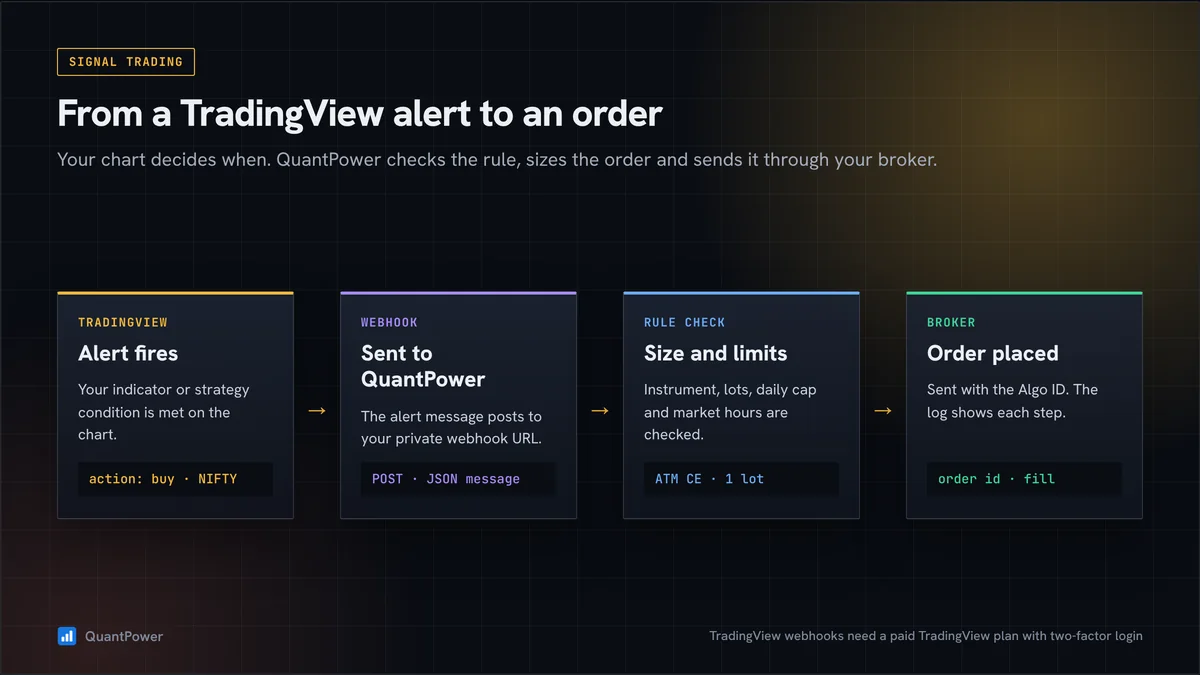
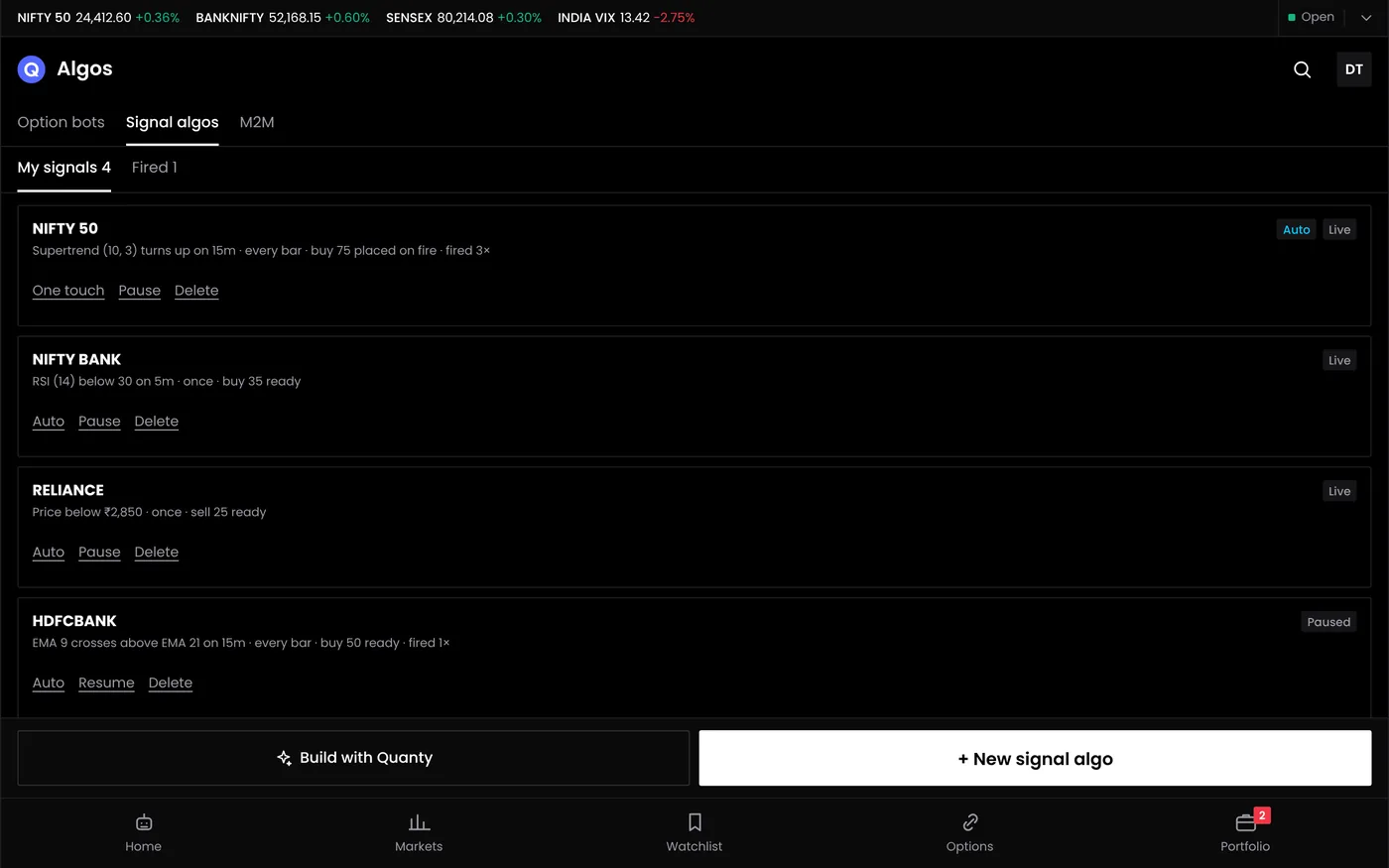
- Create a signal in QuantPower. Choose the instrument, the order type, the quantity or lots, and the stops and targets. QuantPower gives you a webhook URL and an alert message for this signal.
- Create an alert on TradingView. Set the condition on your chart or strategy, paste the webhook URL into the alert's notification settings and the alert message into its message box.
- The alert fires. TradingView sends the message to the webhook URL.
- QuantPower checks the alert against the signal's rules: the instrument, the size, the time window and your daily MTM limit.
- The order goes to your broker through its API. For client-hosted execution, your host and registered static IP must remain available. Broker-hosted execution uses broker infrastructure without requiring the client to obtain a static IP. In Confirmation mode the proposed trade waits for one-touch approval.
- You see it live. The order and position appear in QuantPower's order book and position monitor.
What you need
| Requirement | Detail |
|---|---|
| A TradingView plan with webhooks | Webhook alerts are available on TradingView's paid plans, and need two-factor authentication on the account |
| A QuantPower plan with signal trading | Verify final plan allowances against your needs |
| A connected broker | a broker connection verified for your release |
| Live data for Zerodha users | Zerodha's Kite Connect API at ₹500 a month |
TradingView sends webhooks only to ports 80 and 443, expects a reply within about three seconds, and publishes the IP addresses it sends alerts from. An alert that fails is not resent, so check the alert log on TradingView if an order is missing.
TradingView broker integration in India: the options
Indian traders can turn TradingView signals into orders in three ways:
| Route | How it works | Limits |
|---|---|---|
| Trade from TradingView's own panel | A few brokers connect directly to TradingView's trading panel for manual orders | Manual only; alerts do not place orders automatically |
| Your own webhook server | You write code that receives the alert and calls your broker's API | You maintain the server, the code, the static IP and the broker's API rules |
| A bridge such as QuantPower | QuantPower receives the alert and places the order through your broker | You set the rules; broker-hosted or client-static-IP execution applies |
The bridge route suits traders who want alerts to trade automatically without running their own infrastructure. The tradingview webhook automation guide explains how webhooks work, including the do-it-yourself route.
Best TradingView broker in India for automation
The best TradingView broker in India for automated alerts is one whose API is reliable, cheap for your trading pattern, and supported by your bridge. QuantPower connects 100+ brokers. API costs differ: Zerodha charges ₹500 a month for Kite Connect, and the APIs of Fyers, Upstox, IIFL Capital and Wisdom Capital are free. Brokerage also matters more with automation, because alerts can fire many times a day; compare the brokers in the brokerage calculator.
| Broker | API for QuantPower |
|---|---|
| Zerodha | Kite Connect, ₹500 a month |
| Fyers | Fyers API, free |
| Upstox | Upstox API, free |
| IIFL Capital | IIFL API, free |
| Wisdom Capital | Wisdom Capital API, free |
Controls between the alert and the order
An alert that fires at the wrong time or repeats can be costly. QuantPower applies your rules before any order goes out:
- Size. The quantity or lots are set in QuantPower, not in the alert, so a mistaken alert cannot send a larger order.
- Time window. Signals can be limited to set hours, for example no new entries after 3:00 pm.
- Daily MTM limit. When the day's loss reaches your limit, new alerts are ignored and open positions are squared off. The guide on how to place stop loss order limits across all positions explains the setup.
- Stops and targets. Each signal can carry its own stop loss and target.
- Pause. One switch stops all signals at once.
Using TradingView for the Indian market
TradingView shows NSE and BSE charts for indices, stocks and futures, with its indicators and Pine Script. Common setups that traders automate through alerts:
| Setup | Alert condition on TradingView | Order through QuantPower |
|---|---|---|
| Moving average crossover on Nifty futures | Fast average crosses above the slow one | Buy one lot of Nifty futures with a stop |
| Supertrend flip | The indicator changes direction | Exit the position and reverse |
| Opening range breakout | Price crosses the first 15-minute high | Buy with the stop at the range low |
| Pine Script strategy | The strategy's buy or sell order | The same side on your broker account |
Options from TradingView alerts
Many traders chart Nifty or Bank Nifty on TradingView but trade options rather than futures. In QuantPower, a signal can place an options order when an alert fires: for example, buy the at-the-money call when a buy alert arrives and the at-the-money put when a sell alert arrives, with the strike chosen at the moment of the alert. Option orders follow the same controls as futures orders: the lots, the stop on premium, the time window and the daily MTM limit. Check the strike selection and the spread in paper mode before going live, because option prices move faster than the chart you set the alert on.
Pine Script strategies
A TradingView strategy written in Pine Script can send alerts on its own entries and exits. Set the alert on the strategy rather than on a single condition, and the alert fires each time the strategy's simulated order fills on TradingView. Keep the strategy's position size and QuantPower's signal size consistent, and remember that TradingView's strategy tester and QuantPower's backtest use different data and fill rules, so their results will differ.
SEBI's algo rules and TradingView alerts
Under SEBI's retail algo framework, orders generated automatically from a signal are algo orders and must reach the exchange through a broker-approved setup. QuantPower sends each order through your broker's API with your own API key, from the static IP you register with your broker.
Common problems and fixes
| Problem | Likely cause | Fix |
|---|---|---|
| No order after an alert | Webhook URL or message pasted wrongly, or the alert expired | Copy both again from QuantPower; check the alert's expiry date on TradingView |
| Two orders from one signal | The alert set to fire on every bar or more than once | Set the alert to fire once per bar close |
| Order rejected by the broker | Margin, price band or a closed session | Check free margin and the trading hours of the contract |
| Alert fired outside market hours | The chart condition met in the pre-open or after the close | Limit the signal to market hours |
| Broker session expired | Daily login to the broker not done | Log in to the broker through QuantPower each trading day |
Testing before going live
- Run the signal in paper mode first: alerts fire and orders are simulated on live prices.
- Check that each alert produced exactly one order, at the time and size you expected.
- Compare the fills with the prices on your TradingView chart at the alert time.
- Go live with the smallest size.
Related guides
- Signal trading: orders from indicator rules and alerts
- API vs webhook: how an alert reaches your broker
- How to place stop loss order: a daily loss limit across all positions
- SEBI rules for option trading: the algo framework and the other F&O rules
- Brokerage calculator: the charges on each trade
Start your free trial
Connect your broker, build a strategy and test it on paper before a single live order goes out.
Frequently asked questions
Can TradingView place orders with Indian brokers?
A few brokers allow manual trading from TradingView's panel. To place orders automatically from alerts, you need a webhook bridge such as QuantPower, or your own server.
Do I need a paid TradingView plan?
Yes. Webhook alerts are available only on TradingView's paid plans, and the account needs two-factor authentication.
Which brokers work with TradingView alerts through QuantPower?
Do I need a static IP for TradingView automation?
Client-hosted execution needs your own registered static IP. Broker-hosted execution does not require the client to obtain one.
Can a wrong alert place a large order?
No. The order size is set in QuantPower's signal rules, and the daily MTM limit and time window apply to every alert.
How fast does an order go out after the alert?
Within seconds of QuantPower receiving the alert, subject to TradingView's delivery time and the broker's API.
Sources
- TradingView: webhook alerts, paid plans, two-factor authentication, ports 80 and 443, and published IP addresses (checked 10 October 2026)
- Zerodha Kite Connect and other broker API pricing pages (checked 10 October 2026)
- SEBI: safer participation of retail investors in algorithmic trading, 4 February 2025