
Before you start
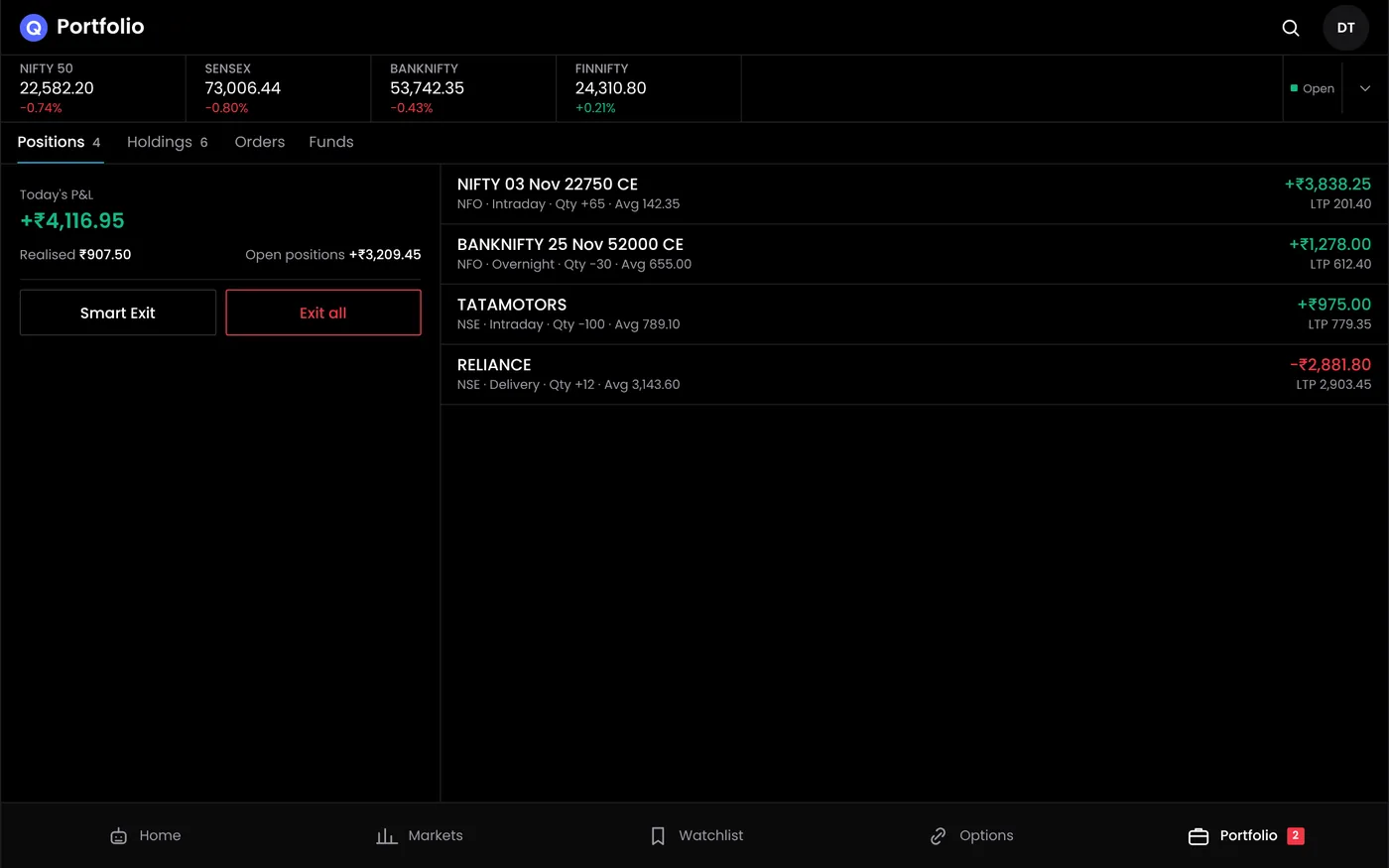
Know what each bot holds. Pausing a bot stops it from taking new entries; it does not close positions it already holds. Check the positions screen before and after you pause.
When to pause
- Events: budget day, RBI policy, election results or a holiday-shortened week, if your strategy was not tested on such days.
- Changed conditions: a strategy's live drawdown is clearly worse than its backtest, or slippage is far above what you assumed.
- Rule changes: a new lot size, expiry day or margin rule since you tested the strategy.
- You are away and cannot watch the account.
The strategy performance page lists signs that a strategy needs a pause or a review.
Step 1: Pause one bot
- Open Algo bots.
- Switch off the bot you want to pause. Its status changes to Paused, and the activity log records the time.
- If the bot holds a position, decide what to do with it: keep it with its stop loss in place, or exit it from the positions screen.
Step 2: Resume the bot
Switch the bot back on. It takes its next entry when its time and conditions are met. Check the schedule: a bot resumed after its entry time may not trade until the next session.
Step 3: Pause signal trading
Open Signals under Algo bots and switch off the signal. Alerts that arrive while a signal is paused do not place orders. For TradingView alerts, you can also pause the alert in TradingView.
Step 4: Stop all automation for the day
To stop every bot at once:
- Switch off each running bot, or let the MTM stop loss do it automatically when its limit is reached.
- Check the positions screen.
- Exit or hedge any open positions, or keep them with stop losses in place.
- Check the order book for open orders, such as pending stop losses, and cancel any you no longer want.
Step 5: Remove a bot
If you are retiring a strategy, stop the bot and remove it from the list once it holds no positions. Keep the strategy saved in the strategy builder, so you can test it again later.
In an emergency
If QuantPower is unavailable while you hold positions, your positions and orders are still with your broker:
- Open your broker's app.
- Check positions and open orders.
- Exit or cancel anything that needs attention.
- When QuantPower is back, check that its positions match your broker's before switching bots on again.
Brokers also provide a kill switch that blocks new orders in a segment. Under SEBI's framework for retail algo trading, brokers must be able to stop algo orders when needed. Check the status page for known problems.
| You want to | Do this |
|---|---|
| Stop new entries from one bot | Switch the bot off |
| Stop all bots after a bad day | Set the MTM stop loss to pause bots at the limit |
| Stop orders from TradingView alerts | Switch off the signal in QuantPower |
| Close everything now | Exit all on the positions screen, or in your broker's app |
Common problems
| Problem | What to do |
|---|---|
| A paused bot still holds a position | Pausing stops new entries only. Exit the position or keep its stop loss |
| A stop loss order is still open after exiting | Cancel it in the order book, or it may open a new position if triggered |
| The bot traded after I resumed it | It resumed during its entry window. Resume after the window if you want it to wait a day |
Next steps
Frequently asked questions
Does pausing a bot close its positions?
No. Pausing stops new entries. Exit open positions separately if you want to be flat.
Can I pause all bots at once?
The MTM stop loss can pause all algo bots for the rest of the day when its limit is reached. To pause them yourself, switch each one off.
Will a paused bot lose its settings?
No. Its settings stay saved until you change or remove the bot.